CREATING NEW PROJECT IN ANDROID STUDIO:
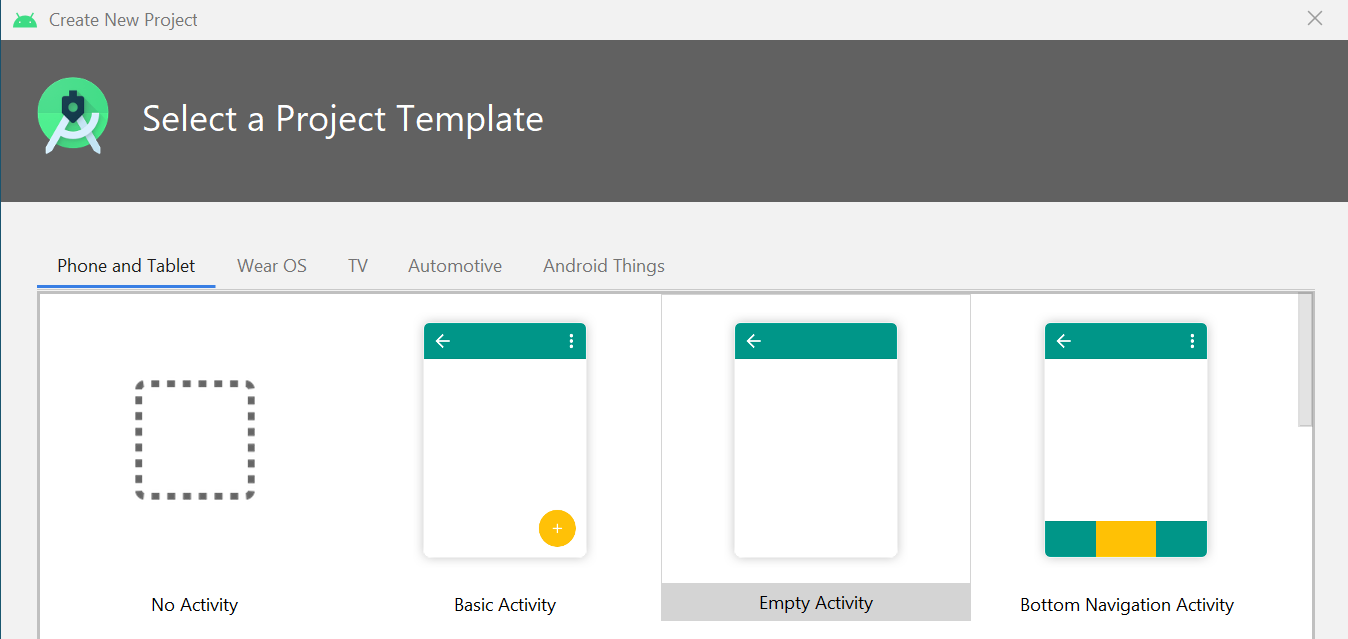
So in my previous blog i explained you android studio main screen briefly. So you will now create a new project by clicking start a new android studio project option.
Open android studio and click on start a new android studio project.
Select a project template:
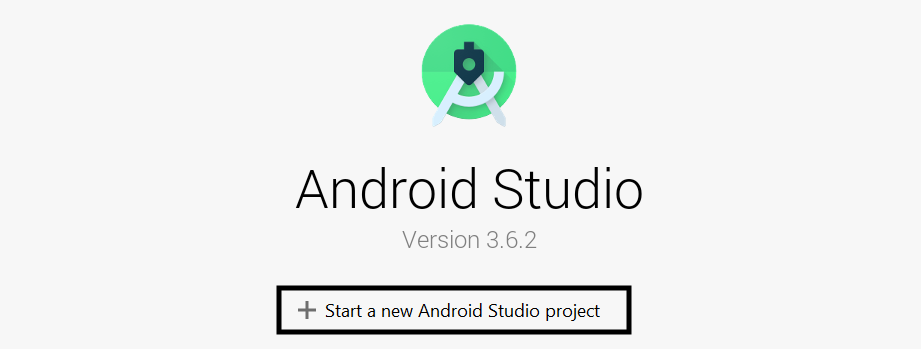
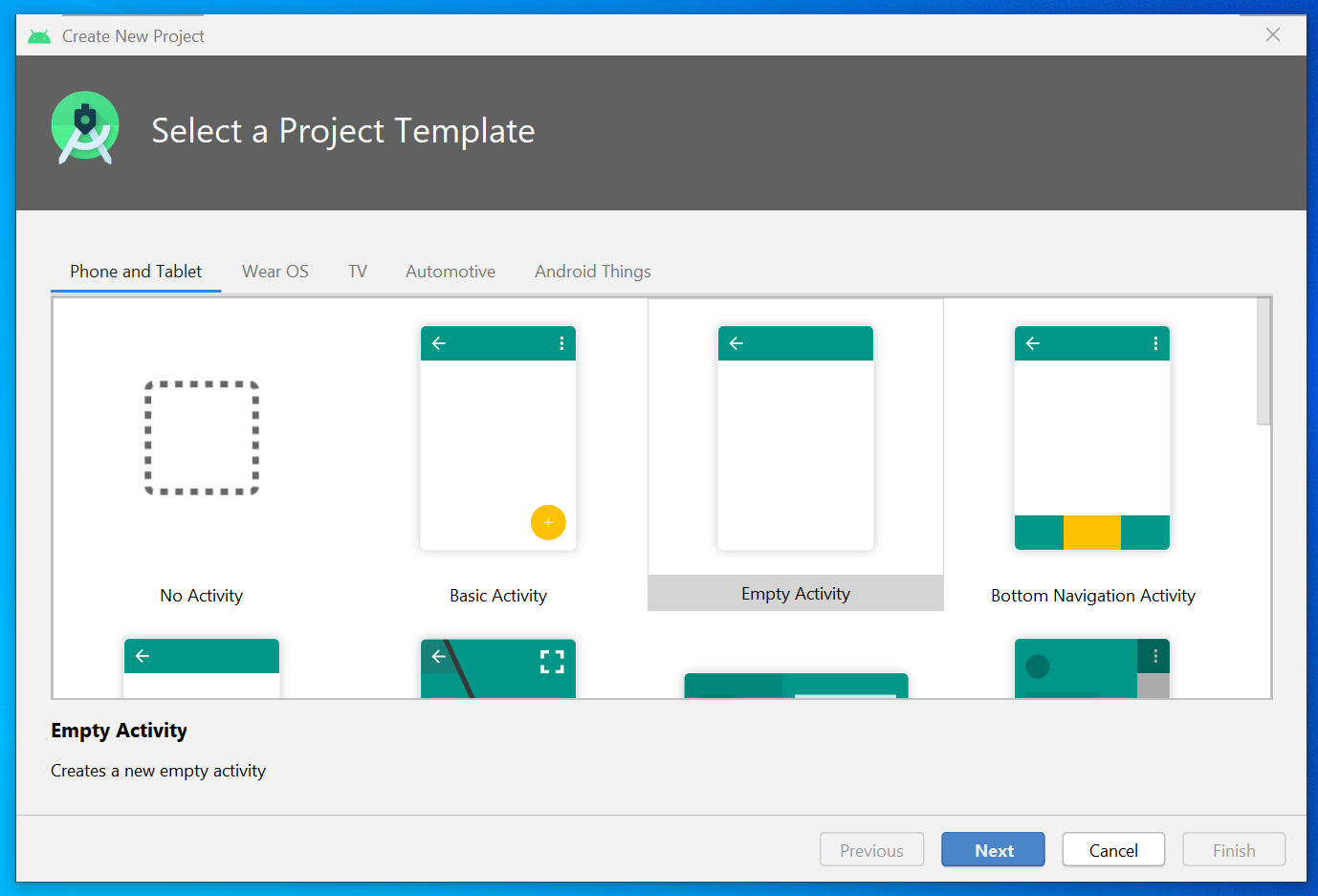
As i said in my previous blogs that android studio provide us some basic built-in templates. Like some of the templates are given in select a project template screen. Now we will later see the other templates now we have to create a simple app that displays a text "HELLO WORLD". So click on Empty Activity template and click next.
This is how project template screen is you can see in below pic that android studio has provided us some basic built in templates.
Configure your project:
Now after coming from project template screen a new window will appear to configure your project. Now in configure your project screen you will see some fields/options like :
Now let's see in detail about this above fields/options.
Name
The name field is your app name what you want to give.. default name is given "My Application" so you have to change the name as per you app name
Package Name
The package name field is the unique identity to indentify your app. For example: When you open app like facebook or instagram in your phone the app get's open by its package name not by its name like facebook. So package name is the unique identity for your app. For example: let's assume you are making app and your app name is "kinda" and your company/developer name is "asm" so instead of putting developer in package name you can put your company/developer name "asm" then the package name of your app will be "com.asm.kinda". So first your top level domain "com" will come. then your company/developer name "asm". and then your app name "kinda". So the the package name will be "com.asm.kinda".
Save Location
I don't think so i have to explain it in detail as the name says save location. The location where you want to save your project.
Language
Now in language field. You will have 2 options available. one is kotlin and second is java. Kotlin is the new android language. Recently android has declared that kotlin will be the official language of android app development. But i will teach you in java only.. because i think if you are newbie to android app development then you should start with java only. I will explain you the kotlin in future.
Minimum SDK
In minimum sdk you will see a list of android version. In this option you have to select only one android version like if you select "API 16:Android 4.1(Jelly Bean)" Then your app will run on API 16 and above android versions and if you select "API 21:Android 5.0(Lollipop)" Then your app will run on API 21 and above android versions. So you have to choose on which android versions you have to run your app.
Use legacy android.support.libraries
Firstly we will see what are libraries. To run and make a android app your app needs some libraries to work. Without libraries you can't develop apps. For example: In your College a assignment work has given and you have to write around 10-15 pages of assignment and the problem is that you are not getting any ideas to how to finish the work then what will do?... Yeah you are thinking right you will ask your friend for the assignment and finish your work. So same here also happens.. here the think is that your app is assignment and libraries is your friends. So Companies like Google , Microsoft and etc.... Develop libraries.. So in that libraries their are many java class file's and methods and functions written by the developer's so when you develop the app you directly use/call their functions or method into your code..So now if you understand what is meant by libraries then we will come back to the option use legacy android.support.libraries. The support libraries option is for. if your app is not targeting to newer android version then you can check this option but if your app is targeting to newer android version then you should uncheck it. Their are two types of libraries available in android. support libraries and androidX libraries. AndroidX Libraries are used for apps that are targeting to newer android version. and support libraries are used for apps that are targeting to older android version like API 28 and below. For example if you choose minimum sdk "API 16:Android 4.1(Jelly Bean)" then also you shouldn't enable this option because then also your will run on api 16 and above android version but if you check this "use legacy android.support.libraries option" then you will see a warning appear that your app will not run on API 28 and above android versions so you have to think to enable this option or not. Only enable this option if your thinking that my app shouldn't run on API 28 and above android versions
So that's it for today we learned how to create new application. Tomorrow we will learn in detail about how to make java class files and much more...